
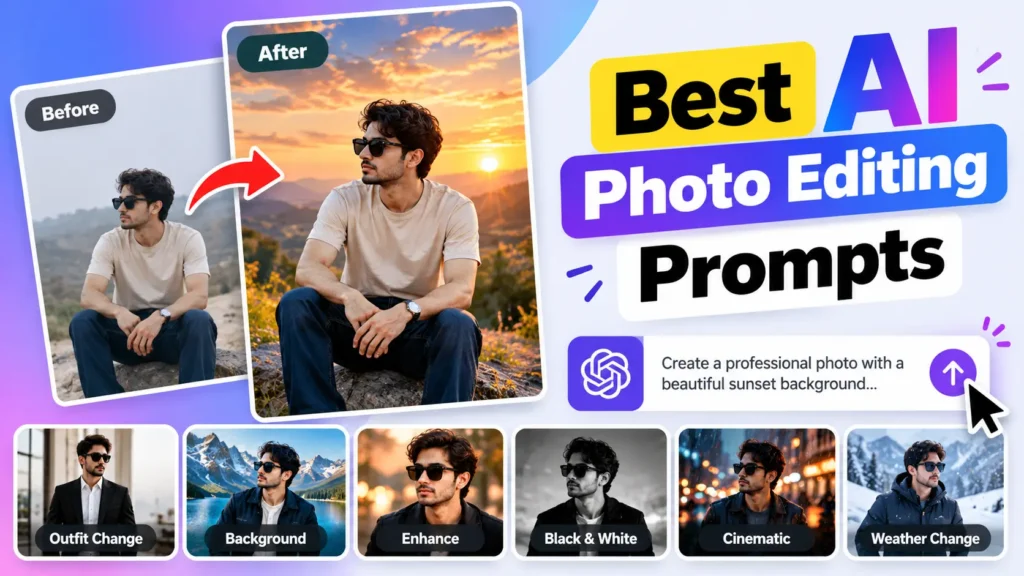
AI photo editing has made it much easier to change and improve photos without spending hours using complicated editing software. With the right AI photo editing prompts, you can change backgrounds, improve lighting, create different styles, remove unwanted objects, and even give your photos a completely new look.
You don’t always need advanced photo editing skills. A clear prompt can tell an AI image editor exactly what you want to change.
In this guide, we’ve collected some of the best AI photo editing prompts you can try with your photos.
What Are AI Photo Editing Prompts?
AI photo editing prompts are text instructions that tell an AI image editor how you want your photo to be changed.
For example, instead of manually changing the background, you can use a prompt like:
“Replace the background with a beautiful sunset beach while keeping the person and facial features unchanged.”
The AI then uses your instructions to create the requested edit.
The more specific your prompt is, the easier it is for the AI to understand your desired result.
Best AI Photo Editing Prompts
Here are some useful prompts for different types of photo edits.
1. Change the Background
Prompt:
“Replace the existing background with a beautiful modern city street at sunset. Keep the person, face, clothes, and body position unchanged. Make the new background look realistic and naturally blended with the subject.”
This is useful when you want to replace a boring or unwanted background without changing the main subject.
2. Create a Professional Portrait
Prompt:
“Turn this photo into a professional portrait. Improve the lighting, add a soft blurred background, enhance facial details naturally, and create a clean studio-style appearance while keeping the person’s identity unchanged.”
This can give an ordinary photo a more polished look.
3. Improve Photo Quality
Prompt:
“Enhance the overall quality of this photo. Increase sharpness and clarity, reduce noise, improve lighting, and restore fine details while keeping the image natural and realistic.”
This works well for older, low-quality, or slightly blurry photos.
4. Create a Cinematic Look
Prompt:
“Give this photo a cinematic look with dramatic lighting, realistic shadows, rich details, subtle contrast, and a professional movie-style color grade. Keep the subject and composition unchanged.”
This can make a simple photo look more dramatic and visually interesting.
5. Change the Outfit
Prompt:
“Change the person’s outfit to a stylish black formal suit with a white shirt. Keep the person’s face, hairstyle, body shape, pose, and background unchanged. Make the clothing look realistic and naturally fitted.”
You can replace the outfit with casual, formal, traditional, or other styles.
6. Create a Luxury Look
Prompt:
“Transform this photo into a luxury lifestyle portrait. Add elegant surroundings, premium lighting, realistic details, and a sophisticated atmosphere. Keep the person’s face and identity unchanged.”
This is useful for creating premium-looking social media photos.
7. Change the Weather
Prompt:
“Change the weather in this photo to a beautiful rainy evening. Add realistic wet surfaces, soft reflections, cloudy skies, and subtle rain while keeping the main subject unchanged.”
You can replace rainy weather with sunny, snowy, cloudy, or sunset conditions.
8. Create a Sunset Photo
Prompt:
“Transform the lighting into a warm golden-hour sunset. Add natural orange and pink tones in the sky, soft sunlight, realistic shadows, and warm highlights while keeping the subject unchanged.”
This can give outdoor photos a warm and attractive appearance.
9. Remove Unwanted Objects
Prompt:
“Remove the unwanted object in the background and naturally fill the empty area so that it matches the surrounding environment. Keep the main subject and the rest of the photo unchanged.”
This is useful for removing people, signs, objects, or distractions.
10. Turn a Photo Into a Black-and-White Portrait
Prompt:
“Convert this photo into a high-quality black-and-white portrait. Use strong but natural contrast, detailed shadows, soft highlights, and a classic photography style. Keep the person’s facial features and identity unchanged.”
Black-and-white editing can give portraits a timeless appearance.
AI Prompts for Instagram Photos
If you create content for Instagram, you can use prompts designed specifically for social media.
Prompt:
“Enhance this photo for Instagram. Improve composition, lighting, sharpness, and colors while keeping the subject natural. Create a clean, modern, premium social-media aesthetic.”
You can also ask the AI to create specific styles such as cinematic, minimal, vintage, luxury, street photography, or travel photography.
How to Write Better AI Photo Editing Prompts
A good prompt should clearly explain what you want the AI to change.
Try to include these details:
- Subject: Explain what should remain unchanged.
- Background: Describe the new environment.
- Lighting: Mention whether you want soft, bright, dramatic, or cinematic lighting.
- Style: Specify the visual style you want.
- Colors: Mention the preferred color tone or mood.
- Details: Tell the AI how realistic or detailed the result should be.
- Restrictions: Clearly state what should not be changed.
For example, instead of saying:
“Make this photo better.”
Try:
“Improve the lighting and sharpness, reduce background distractions, add a soft depth-of-field effect, and give the photo a natural professional photography look while keeping the person’s face unchanged.”
The second prompt gives the AI much more useful information.
Tips for Getting Better AI Photo Edits
AI editing results can vary depending on the photo and the tool you use. These tips can help you get better results.
Be Specific
Clearly describe the changes you want. Avoid very short or vague instructions.
Protect Important Details
If you don’t want the AI to change someone’s face, clothes, or pose, mention it in the prompt.
Make One Change at a Time
For complicated edits, start with one major change and then make additional edits. This can produce more consistent results.
Use Realistic Instructions
If you want a realistic photo, mention words such as natural lighting, realistic details, accurate skin texture, and photorealistic.
Experiment With Different Styles
The same photo can look completely different with different prompts. Try cinematic, vintage, studio, luxury, street, or minimal styles to find the look you prefer.
Final Words
AI photo editing prompts can make photo editing much easier, even if you don’t have professional editing skills. A well-written prompt can help you change backgrounds, improve image quality, adjust lighting, remove unwanted objects, change outfits, and create completely different visual styles.
The key is to be clear and specific about what you want. Start with the prompts above and modify them according to your photo and the result you want.
With a little experimentation, you can create professional-looking and creative edits using simple text instructions.