
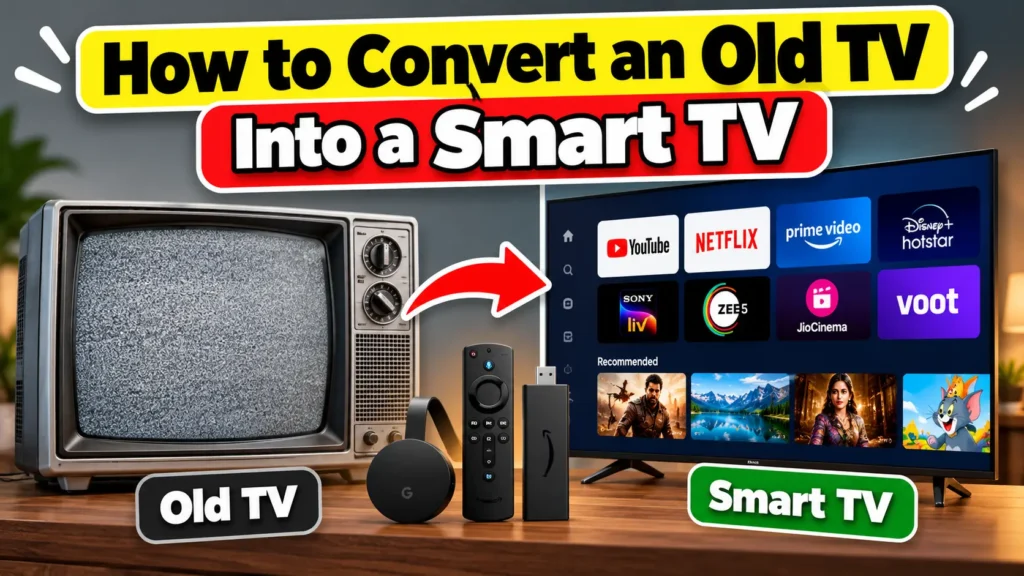
Do you have an old TV at home and want to watch YouTube, Netflix, Prime Video, or other streaming apps on it? You don’t necessarily need to buy a new television. You can convert your old TV into a smart TV using a streaming device, an Android TV box, or even a laptop.
The best method depends on the ports available on your TV, your budget, and the features you want. In this guide, you’ll learn five easy ways to make an old TV smart, including options for TVs with HDMI and older TVs with AV ports.
1. Use an Amazon Fire TV Stick
An Amazon Fire TV Stick is one of the easiest ways to convert a compatible old TV into a smart TV. It connects to your television’s HDMI port and gives you access to streaming apps over Wi-Fi.
What you need
- A TV with an HDMI port
- An Amazon Fire TV Stick
- A Wi-Fi connection
- An Amazon account
Steps to connect a Fire TV Stick
- Plug the Fire TV Stick into an available HDMI port on your television.
- Connect its power cable to the supplied power adapter and a wall outlet.
- Turn on your TV and select the corresponding HDMI input using the remote.
- Follow the on-screen instructions to connect the device to Wi-Fi.
- Sign in to your Amazon account and install your preferred streaming apps.
Once the setup is complete, you can open supported apps and watch online content directly on your TV.
Important: The Fire TV Stick requires a compatible HDMI input and an internet connection. Some apps also require a paid subscription. If your TV only has AV or RCA ports, you’ll need a suitable HDMI-to-AV converter.
2. Use an Android TV Box or Google TV Streaming Device
Another way to make an old TV smart is to connect an Android TV box or a compatible Google TV streaming device.
These devices connect to your TV and provide a smart interface for streaming apps, online videos, and other supported services.
What you need
- A compatible Android TV box or Google TV device
- An HDMI port on your television
- A Wi-Fi connection
- A power supply for the device
How to set it up
- Connect the streaming device to your TV’s HDMI port.
- Plug the device into its power supply.
- Select the correct HDMI input on your television.
- Connect the device to your Wi-Fi network.
- Sign in with your Google account if required.
- Install supported apps from the device’s app store.
You can now use the device’s remote to browse apps, stream videos, and access other available features.
Android TV box vs. Google TV device
Although these names are sometimes used interchangeably, they don’t always refer to the same software experience. Google TV is an interface available on supported streaming devices, while Android TV is another TV operating system.
When buying a device, check that it is certified for the streaming services you want to use. Very cheap, uncertified boxes may have compatibility, security, or video-quality limitations.
3. Use a Chromecast or Compatible Casting Device
If you prefer watching videos from your phone, a casting device may be a good option.
A compatible Chromecast device or another supported casting receiver can let you send content from your phone or tablet to your television.
What you need
- A compatible casting device
- An HDMI port on your TV
- A smartphone or tablet
- A Wi-Fi connection
Steps to connect a casting device
- Connect the device to your TV’s HDMI port.
- Connect it to power.
- Follow the manufacturer’s setup instructions.
- Connect the device and your phone to the appropriate Wi-Fi network.
- Open a compatible app on your phone.
- Tap the Cast icon, if available, and select your device.
The video will play on your TV while your phone can be used to control playback.
Keep in mind: Not every phone app supports casting, and some older Chromecast models have different capabilities from newer Google TV devices. Check the features of the specific model before buying it.
4. Connect Your Laptop to Your TV Using HDMI
If you already have a laptop, you may not need to purchase a separate streaming device.
You can connect your laptop to your television with an HDMI cable and use the TV as an external display. This allows you to watch videos, browse websites, and access streaming services through your laptop.
What you need
- A laptop with an HDMI output, or a compatible video adapter
- An HDMI cable
- A TV with an HDMI input
- An internet connection on your laptop
Steps to connect your laptop
- Connect one end of the HDMI cable to your laptop.
- Connect the other end to your TV.
- Turn on the television and select the correct HDMI input.
- On Windows, press Windows + P and select Duplicate or Second screen only.
- On a Mac, open System Settings and look for the Displays settings.
- Open a streaming website in your browser and play a video.
Your TV will display the laptop’s screen, allowing you to watch supported online content on a larger display.
This method is useful if you already own a laptop. However, you may need to keep the laptop switched on whenever you want to stream content.
5. Use an HDMI-to-AV Converter for an Older TV
Some older televisions don’t have an HDMI port. Instead, they may have composite AV inputs, usually identified by yellow, white, and red connectors.
If your TV has these inputs, you may still be able to connect a modern streaming device using an HDMI-to-AV converter.
What you need
- A streaming device with HDMI output
- An HDMI-to-AV converter
- AV cables compatible with your television
- A power supply for the converter, if required
- An internet connection
How to connect the devices
- Connect the streaming device’s HDMI output to the converter’s HDMI input.
- Connect the converter’s AV outputs to the matching inputs on your TV.
- Power the converter and streaming device.
- Select the appropriate AV input on your television.
- Complete the streaming device’s setup and connect it to Wi-Fi.
Your old TV may now display the streaming device’s interface and supported apps.
Important limitations
An HDMI-to-AV converter changes the video signal format, but it doesn’t add smart features by itself. You still need a streaming device or another source of online content.
The picture quality will generally be lower than HDMI because composite AV connections have limited resolution. Also, not every HDMI source or converter combination works correctly, so check compatibility before purchasing.
What If Your Old TV Doesn’t Have HDMI or AV Ports?
If your television only has an antenna input or an unusual proprietary connector, converting it may require additional equipment.
A standard HDMI-to-AV converter won’t connect directly to an antenna-only input. You may need a compatible RF modulator or another specialized solution, depending on the TV and the device you’re connecting.
Before buying anything, check your TV’s model number and available ports. In some cases, replacing an extremely old television may be simpler and more practical than purchasing several adapters.
Which Method Is Best for You?
The best option depends on the connections available on your TV and how you want to use it.
| Method | Best for | Main requirement |
|---|---|---|
| Amazon Fire TV Stick | Easy streaming setup | HDMI port |
| Android TV box or Google TV device | Apps and a dedicated TV interface | HDMI port |
| Chromecast or compatible casting device | Casting from a phone | HDMI and Wi-Fi |
| Laptop with HDMI | Streaming without buying a separate streaming device | HDMI or compatible adapter |
| HDMI-to-AV converter | Older TVs with composite inputs | AV ports and a compatible converter |
For most people with an HDMI-equipped TV, a dedicated streaming stick or certified streaming box is the simplest option.
Can You Make an Old TV Smart Without Wi-Fi?
You can connect certain devices to your TV without Wi-Fi, but the available features will be limited.
For example, a laptop can play locally stored videos through HDMI, and some streaming devices support Ethernet adapters or other wired network options. However, accessing online services generally requires an internet connection.
If your home internet is unavailable, you may be able to use a phone’s mobile hotspot, provided your streaming device supports Wi-Fi and your mobile plan allows it.
Can You Make an Old TV Smart Using Your Phone?
A phone alone usually cannot turn a regular TV into a smart TV simply by connecting a cable. Most phones don’t output video through a standard charging cable unless they support a compatible video-output feature and adapter.
A more practical option is to use your phone to control a compatible streaming device or cast content to a supported receiver.
Before purchasing an adapter, check your phone model’s video-output capabilities. USB-C or Lightning connectors do not automatically guarantee that a phone can send video to a TV.
Do You Need to Pay for Streaming Apps?
The device itself and the streaming services are separate.
Some apps provide free content, while others require a subscription or rental payment. For example, you may be able to watch selected videos on YouTube for free, while access to particular movies or shows on subscription services may require payment.
You should also check whether the streaming device supports the apps you use in your country.
Frequently Asked Questions
1. Can I convert a normal LED TV into a smart TV?
Yes. If your LED TV has an HDMI port, you can usually connect a compatible streaming stick or box to access supported apps and online content.
2. Can I convert an old TV into a smart TV without buying a new TV?
Yes. A compatible streaming device can add smart features to many older televisions, allowing you to continue using your existing TV.
3. Can I watch Netflix on an old TV?
Yes, if you connect a compatible streaming device and your TV supports the required connection. You will also need an internet connection and a Netflix subscription where required.
4. Does a smart TV stick need Wi-Fi?
Most streaming sticks need an internet connection to access online streaming services. Some devices can use a compatible Ethernet adapter instead of Wi-Fi.
5. Will converting my old TV improve its picture quality?
Not necessarily. A streaming device adds smart features but cannot improve the TV’s physical display resolution. An older standard-definition TV will still have its original display limitations.
6. Can I use a USB port to make my TV smart?
A USB port alone generally won’t make a TV smart. It may provide power or allow media playback, but you usually need a compatible streaming device connected through HDMI or another supported video input.
Final Words
Converting an old TV into a smart TV is often cheaper than replacing it. If your television has an HDMI port, a Fire TV Stick, a certified Android TV box, or a compatible Google TV streaming device is usually the easiest solution.
If your TV only has AV inputs, an HDMI-to-AV converter may help, although you’ll have to accept lower picture quality. Check your TV’s available ports and the streaming device’s compatibility before buying anything.
With the right equipment, you can keep using your old television while enjoying supported streaming apps, online videos, and other smart features.